

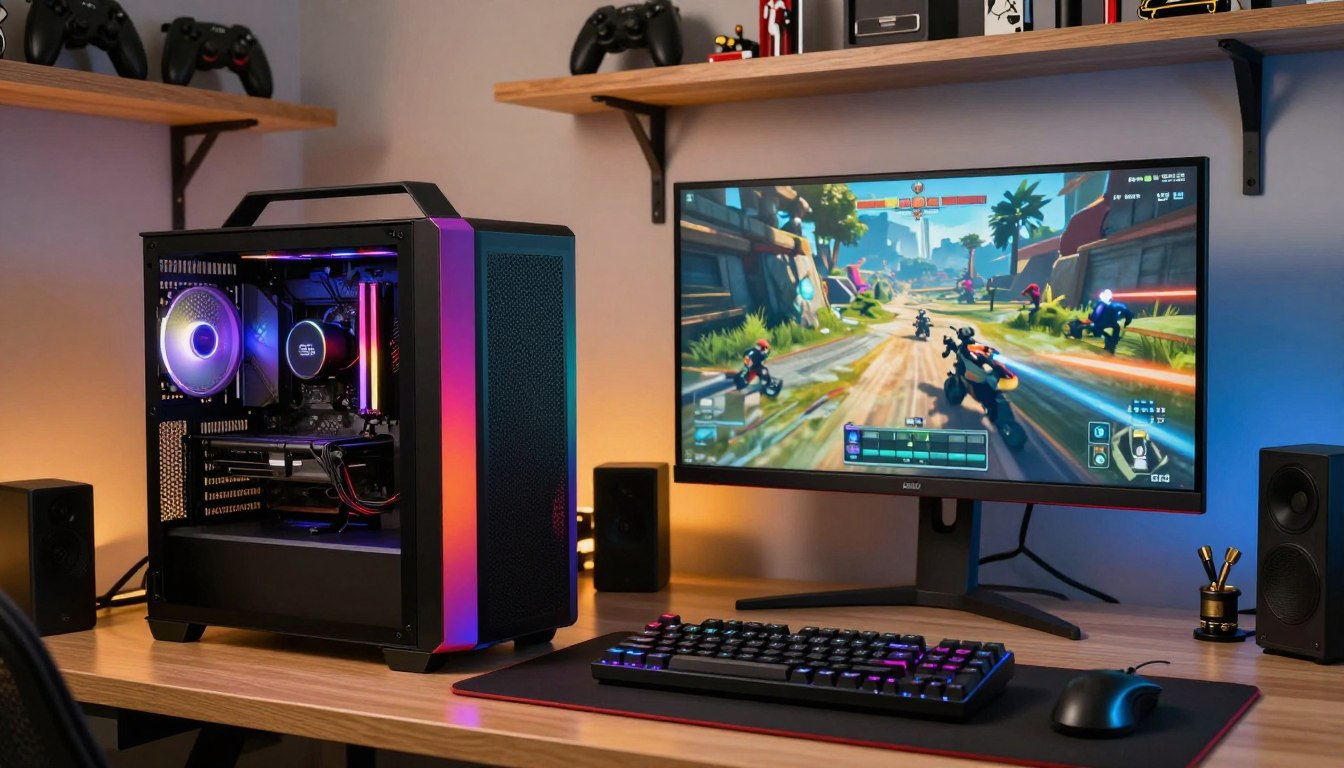
A practical gaming PC does not have to be top-of-the-line, but a very low price means accepting compromises in graphics settings or future upgrades. A discrete GPU is a graphics processor with its own dedicated video memory, separate from the integrated graphics built into some CPUs.
The gap between a strict under-$500 ceiling and a fuller 1080p setup can change which games feel comfortable to play. Your budget, favorite games, and target resolution all shape the right choice. This guide compares options by spending level and use case, so you can focus on value rather than a long list of component names. Decide your maximum spend and the games you care about before comparing component names.
Key Takeaways
- Under $500 is an entry point with compromises in graphics settings.
- A stronger 1080p setup usually needs a larger tower budget.
- Compare the exact graphics card, not just the PC model name.
- Include a monitor and input devices in your total budget.
- Check warranty, condition, and return terms before buying renewed.
What Is the Best Affordable PC for Gaming at Each Budget?
For a hard $500 limit, start with the TechMagnet HP Premium Gaming PC with RX 550; for stronger 1080p gaming, step up to the CyberPowerPC Gamer Xtreme. Those gaming PCs suit different spending tiers, not a like-for-like comparison.
The TechMagnet HP Premium makes sense when your absolute cap matters more than high settings or room for demanding new games. Its RX 550 gives you a discrete GPU, while the system keeps the entry price below your limit. It is a practical option for lighter play and older titles.
The pick for a strict $500 ceiling
Choose the HP Premium with RX 550 when crossing your spending ceiling is not an option. That makes it a best budget gaming choice for a buyer who accepts modest graphics. Treat the low price as a trade-off, not a promise that every game will run smoothly at high settings.
Choose by the games and resolution you plan to use, not by the lowest sticker price alone.
The pick for stronger 1080p gaming
The CyberPowerPC Gamer Xtreme is the stronger direction when your budget can stretch beyond the strict-cap tier. It is aimed at a fuller 1080p experience and gives you a more capable starting point for current games. That does not make it the best gaming option for every buyer: a low-spend player may value the TechMagnet more.
Think about the games you play most, the graphics settings you can accept, and whether you want to upgrade later. An entry-level system may suit familiar esports titles, while visually demanding games ask more of the graphics hardware. Match the recommendation to the games and resolution you actually plan to use.
How Far Does Each Gaming Budget Go?
A $500 budget can get you into PC gaming, but it is best treated as an entry point rather than a route to maximum graphics settings. The target resolution and component balance matter more than an “affordable” label. Lower spending can work for lighter games, while more demanding games favor a stronger system.
Under $500, expect to adjust settings and keep your expectations grounded. A PC aimed at 1080p or entry-level 1440p gaming commonly falls in the $800-$1,100 range. Above that, buyers can consider more capable or more upgrade-friendly configurations, depending on the hardware choices.
| Budget tier | Typical goal | Main compromise | Best fit |
|---|---|---|---|
| Under $500 | Entry-level gaming | Lower graphics settings | Lighter games and tight budgets |
| $800-$1,100 | 1080p or entry-level 1440p | Some limits in demanding titles | More capable everyday gaming |
| Above $1,100 | Stronger gaming or upgrade room | Higher upfront price | Buyers seeking more capability |
Below $500: entry-level play and trade-offs
At the lowest price tier, the system can get you playing, but it may need low or medium settings in newer games. The main compromise is graphics performance, not the word “gaming” in the product title. Check what the system can run at your chosen resolution before you decide it offers good value.
$800-$1,100: a fuller 1080p setup
This range gives you more room to choose a balanced system for 1080p, and some entry-level 1440p play. Spending more can also open up configurations with stronger graphics or storage. Set the budget around the experience you want, not just the tower price.
Which PCs Can You Buy for Under $500?
The TechMagnet HP Premium with RX 550 is the clearest starting point for buyers holding the tower budget below $500. It is a cheap gaming PC under $500, with a discrete graphics card and a starting price that leaves room below the limit. For this budget, compare each listing’s exact GPU and condition.
For the best gaming PC under $500, the RX 550 version is the lead pick among these options. The GT 1030 Premium costs slightly more, while the HP Renewed versions carry a renewed condition label. A TechMagnet HP G4 with a Ryzen 3 Pro and GT 730 includes 16GB RAM.
| Model and CPU | GPU | RAM detail | 2026 starting price |
|---|---|---|---|
| TechMagnet HP Premium, Ryzen 3 Pro | RX 550 | Not specified | Starting at $329.99 |
| TechMagnet HP Premium, Ryzen 3 Pro | GT 1030 | Not specified | $339.99 |
| HP Renewed Gaming PC, Ryzen 3 Pro | RX 550 | Not specified | $349.99 |
| HP Renewed Gaming PC, Ryzen 3 Pro | GT 1030 | Not specified | $359.99 |
| TechMagnet HP G4, Ryzen 3 Pro | GT 730 | 16GB RAM | $369.99 |
The TechMagnet HP Phoenix with Ryzen 3 Pro and 16GB RAM starts at $399.99. The HP Phoenix Circuit version starts at $409.99, also with a Ryzen 3 Pro and 16GB RAM. For an Intel option, the HP G4 with an Intel i5 and GT 730 starts at $429.99.
Those names can hide meaningful differences in graphics, condition, or included parts. Listings also may offer distinct configurations under the same product family. A low starting price is not enough to show whether the option fits your games.
The under-$500 question has a direct answer: choose the TechMagnet HP Premium with RX 550 as the clearest strict-budget pick. Configuration and condition matter when comparing listings, so compare the exact graphics card and renewed condition on the listing, not just the PC’s model name.
What Should You Check Before Buying a Renewed Gaming PC?
A prebuilt under $500 deserves a closer check of its condition, warranty, return window, and exact parts before you buy. Renewed terms belong to a particular listing, not every low-cost system. Use this checklist to judge whether a budget gaming PC prebuilt gives you enough certainty.
The renewed PCs in Speedy Staples’ under-$500 comparison include Windows 11 and a 1-year warranty. Those listings also include free 2-day shipping across the continental United States and 30-day returns with no restocking fee in 2026. Those terms apply to that comparison’s renewed listings only.
- Confirm the exact CPU and GPU. Similar model names can describe different parts.
- Check whether the listing says renewed and what that condition means.
- Verify the operating system and warranty for that specific system.
- Read the shipping terms and return window before placing an order.
- Price any RAM or storage upgrades before checkout.
The operating system matters because it affects setup, and the warranty defines the period of coverage. Shipping and return rules can also change the risk of buying a renewed PC. Read the listing details rather than assuming another seller uses the same terms.
On most of those renewed under-$500 listings, RAM and storage can be upgraded for an added cost. Work that price into your budget if the base configuration does not meet your needs. A storage upgrade may be useful if you plan to keep several large games installed at once.
Keep a record of the system’s listed parts and condition. If a listing uses broad wording, look for a clear configuration description before you commit. Save the listing details and return deadline until you have confirmed the PC works as expected.
Which Gaming PC Is the Best Choice Under $1,000?
The NZXT Player One’s $999 RTX 5060 configuration is a clear route to stronger graphics below the $1,000 mark, while lower-priced prebuilts trade down in GPU capability. Compare the actual graphics card and SSD capacity, not price alone.
The NZXT Player One starts at $829, and its base configuration uses an RTX 3050. The $999 version uses an RTX 5060, so those are distinct configurations within one model family. A shopper choosing by the starting price could overlook that important difference.
New prebuilts near the lower end
Three lower-priced gaming PCs show how much the rest of the build varies. The ViprTech Ghost pairs a Ryzen 7 with an RX 580 8GB, 16GB DDR4, and a 500GB SSD. The CyberPowerPC pairs a Ryzen 5 5500 with an RX 6500 XT 4GB, 16GB DDR4, and a 1TB SSD.
| Model | CPU and GPU | RAM and storage | Listed price |
|---|---|---|---|
| ViprTech Ghost | Ryzen 7, RX 580 8GB | 16GB DDR4, 500GB SSD | $874.99 |
| CyberPowerPC desktop | Ryzen 5 5500, RX 6500 XT 4GB | 16GB DDR4, 1TB SSD | $899.99 |
| Thermaltake Quartz i350 | Core i5-14400F, RTX 3050 | 16GB RAM, 1TB NVMe SSD | $1,058.49 |
When it is worth stretching the budget
The Thermaltake Quartz i350 is just above $1,000, with a Core i5-14400F, RTX 3050, 16GB RAM, and 1TB NVMe SSD. Its listed price makes it a stretch, though it does not offer the RTX 5060 graphics tier found in the $999 Player One configuration. Check the parts rather than assuming a higher price means a stronger GPU.
The best budget choice depends on the hardware attached to the price and your intended games. Look at both the GPU and SSD size, since a large game library can make limited storage inconvenient. Check the configuration attached to the price, since one model family can include meaningfully different graphics cards.
What Do You Get From the CyberPowerPC Gamer Xtreme?
At $1,099.99, the CyberPowerPC Gamer Xtreme is a step above a strict $1,000 cap, with a Core Ultra 5 225F, RTX 5060, 32GB of DDR5, and a 2TB SSD. Its components make it a 1080p-focused step-up configuration.
The reviewed configuration pairs the Intel Core Ultra 5 225F with an MSI GeForce RTX 5060. It also has 32GB of DDR5-6400 memory and a 2TB PCIe 4.0 SSD. That combination gives you room for multiple games and applications without making a frame-rate promise.
For many players, 32GB RAM can leave more room for a game and background apps to run together. A 2TB SSD can hold a larger game library than a smaller drive, so you may spend less time deciding what to uninstall. These parts affect convenience and headroom, not a guaranteed performance result.
The Windows 11 installation is bloat-free, which means it does not arrive crowded with unnecessary preinstalled software. That can make initial setup feel cleaner. Still, the physical comfort of using the PC matters alongside its parts.
The main drawback is its very loud air cooler. Fan noise can be noticeable during play, especially if your PC sits close to your desk. If quiet operation matters, account for the cooler noise before choosing this configuration.
Which CPU and GPU Matter Most in a Budget Gaming PC?
For gaming performance, start with the graphics hardware, then check that the CPU is a reasonable match for it. The GPU usually has the greatest effect on game visuals and FPS. A discrete GPU is the stronger choice for demanding games, while integrated graphics can suit lighter play.
The abytespark AOV590 combines a Ryzen 5 5500 and an RX 590 8GB, with 16GB DDR4 and a 512GB NVMe SSD. The HP Victus 15L pairs a Ryzen 5 5600G with an RX 6400 4GB, 8GB DDR4, and a 512GB SSD. Both use discrete graphics, though their configurations differ.
Discrete graphics for heavier games
A discrete GPU has its own video memory and handles graphics separately from the processor’s integrated graphics. That makes it a better fit for more demanding games and richer visual settings. The CPU still matters for running the game and other tasks, but a powerful CPU cannot replace a weak GPU.
Integrated graphics for lighter play
The MXZ R5 5600GT uses a Ryzen 5 5600GT with Vega 7 integrated graphics, 16GB DDR4, and a 1TB NVMe SSD. The compact PELADN WO4 pairs a Ryzen 5 5600H with Vega 7 graphics, 16GB DDR4, and a 512GB NVMe SSD. Its body measures 5 x 5 x 2 inches and weighs 1.21 pounds.
That small PELADN can suit a desk with limited room, while integrated graphics keep the design compact. Such systems are reasonable for lighter titles, but demanding games call for a discrete card. Use these four checks to compare parts without being distracted by marketing labels.
- GPU tier: match graphics hardware to the games and resolution you want.
- CPU needs: account for work and other tasks beyond gaming.
- RAM baseline: make sure the system has enough memory for your use.
- SSD capacity: choose space that fits the games you want installed.
The processor and graphics card work as a pair, but they do not have equal weight for every game. Choose integrated graphics only when the games and settings you want fit its limits.
What Can an Affordable Gaming PC Run at 1080p, 1440p, and 4K?
For a PC below $500, plan around 1080p and modest settings rather than expecting demanding games to run at ultra quality. Under-$500 systems can typically reach about 30-60 FPS at low or medium settings, depending on the game and hardware.
That range is a general expectation, not a promise for every title. Fortnite, Valorant, CS2, Rocket League, and GTA V are common fits for budget systems. Recent AAA games often make the graphics hardware work harder, so settings may need to come down.
Resolution affects how much detail the GPU has to draw. A more demanding resolution can make the same PC feel less capable, even when you keep the game unchanged. Use these practical expectations when choosing a display and graphics settings.
- 1080p is the sensible entry-level target for a low-cost system.
- Use low or medium settings in demanding games.
- Esports games are generally more forgiving than recent AAA titles.
- 1440p and 4K put greater pressure on the GPU and may require lower settings or a more powerful system.
Actual FPS depends on the game, GPU, resolution, and settings. A lighter esports title may run differently from a visually rich adventure game on the same hardware. Your display’s resolution also changes the workload.
Consider whether you prefer smoother play or sharper visuals when adjusting settings. Lowering visual effects can help a budget system stay within its limits, while a higher resolution may call for stronger graphics hardware. Treat an advertised FPS target as specific to a game and configuration, not a promise for every title.
How Do the MSI Codex R2 and NOVATECH Phantom 2.0 Configurations Compare?
These configurations differ most clearly in graphics, memory type, storage capacity, and power-supply rating. The MSI configuration has the newer stated graphics tier and a larger SSD. The NOVATECH configuration includes Windows 11 Pro and a 1-year warranty.
The specs below describe these particular gaming PCs, not every version sold under either name. The MSI Codex R2 pairs a Core i5-14400F with an RTX 4060 with 8GB VRAM. The NOVATECH Phantom 2.0 pairs an Intel Xeon i7 with an RTX 3050 with 6GB VRAM.
| Configuration | CPU and GPU | RAM | Storage and power supply | OS or warranty |
|---|---|---|---|---|
| MSI Codex R2 | Core i5-14400F, RTX 4060 8GB VRAM | 16GB DDR5, 2 x 8GB | 1TB M.2 NVMe SSD, 650W Gold | Windows 11 Home |
| NOVATECH Phantom 2.0 | Intel Xeon i7, RTX 3050 6GB VRAM | 16GB DDR4-2666MHz, 2 x 8GB | 512GB M.2 NVMe SSD, 550W Bronze | Windows 11 Pro, 1-year warranty |
The MSI’s listed 1TB SSD gives it more storage space than the NOVATECH’s 512GB drive. Its power supply is rated 650W Gold, compared with the NOVATECH’s 550W Bronze unit. Those details distinguish the listed builds, but they do not alone establish the price or the gaming performance of either PC.
The NOVATECH’s Windows 11 Pro and 1-year warranty are specific features of that configuration. Check the listed components against your needs, especially if storage space or graphics hardware matters to you. Verify the exact configuration on the listing before comparing either PC with another model.
How Much RAM and Storage Does Gaming Need?
For most gaming buyers, 16GB is workable, while 32GB is the safer choice when games and background apps compete for memory. More RAM usually adds headroom rather than a large average-FPS increase. Under memory pressure, 32GB can improve smoothness and 1% lows.
Game demands differ. Star Citizen and Flight Simulator 2024 showed clearer benefits from 32GB, especially for minimum frame rates and reduced stutter. Hogwarts Legacy generally ran well with 16GB in the discussed test setup. Those examples show why average FPS is not the only measure of a smooth experience.
Choosing 16GB or 32GB of RAM
Choose 16GB if your budget is tight and your game library is not especially demanding. Choose 32GB for more breathing room when you keep a browser, chat apps, or other tools open while gaming. Extra capacity helps most when your system would otherwise run short.
Picking memory speed and SSD capacity
Memory compatibility depends on the CPU platform. DDR5-5600 works directly with AMD Ryzen 9000 and Ryzen 9000 X3D processors. DDR5-6400 and DDR5-7200 are compatible with Intel Core Ultra 200S and Core Ultra 200K Plus processors. AMD Zen-based processors generally benefit more from higher memory frequencies than Intel systems.
Faster RAM can also help integrated graphics, which typically lack dedicated video memory. G.Skill’s Trident Z5 Neo RGB DDR5-6000 is a 32GB kit in a 2 x 16GB setup, with 30-38-38-96 timings and a 1.35V rating. The kit was listed starting at $97.97 in 2026.
When a larger RAM kit makes sense
The G.Skill Trident Z5 RGB DDR5-6000 is another 32GB, 2 x 16GB kit. It has 36-36-36-76 timings and a 1.30V rating. For a very different need, Corsair Vengeance DDR5-5200 is available as a 192GB 4 x 48GB kit, a size meant for more than ordinary gaming.
SSD capacity is a library-size choice. Games larger than 100GB can quickly crowd a small drive, especially when you keep several installed. Check motherboard and CPU memory compatibility before paying extra for a faster kit.
What Does a Full Gaming PC Setup Cost?
A gaming PC setup costs more than its tower price when you still need a display and input devices. A complete set should account for the tower, monitor, keyboard, and mouse. A headset or speakers are optional extras.
A typical 1080p monitor costs about $100-$250, while a basic keyboard-and-mouse set costs about $30-$100. These are useful planning ranges for a budget, not fixed prices for every size or feature level. A display that matches your resolution goal is part of the experience.
What a budget gaming PC with a monitor should include
The best budget gaming PC with a monitor is a tower suited to your intended resolution, paired with a compatible 1080p display. Check whether the tower listing includes the peripherals you need. Standalone gaming desktop towers commonly do not include a monitor, keyboard, or mouse, though some bundles do.
- Tower: the desktop system and its listed components.
- Monitor: a display suited to your resolution target.
- Keyboard: an input device, often sold separately.
- Mouse: a pointing device, often sold separately.
What a full-set gaming PC price needs to cover
A full-set gaming PC price needs to cover all the parts you do not already own. Add a headset or speakers only if you need them. The MSI Codex R2 is one bundle exception: its configuration includes a keyboard and mouse and runs Windows 11 Home.
Bundles can save you from buying input devices separately, but the included items may not match your preferences. Compare the box contents with the gear already on your desk. Check the box contents before buying so you do not pay twice for peripherals you already own.
Which Gaming PCs Are Easier to Upgrade and Keep Cool?
Upgrade potential depends on the case, power supply, motherboard, and available drive mounts, not just a promise that a tower is expandable. Check physical space and connectors before counting on a future hardware change.
The Asus ROG G700 has a Core Ultra 7 265KF, RTX 5070, 32GB DDR5-4800, a 2TB PCIe 4.0 SSD, an 850W power supply, and a 240mm liquid cooler. Its 850W unit should support some future GPUs, but that does not mean every upgrade will fit.
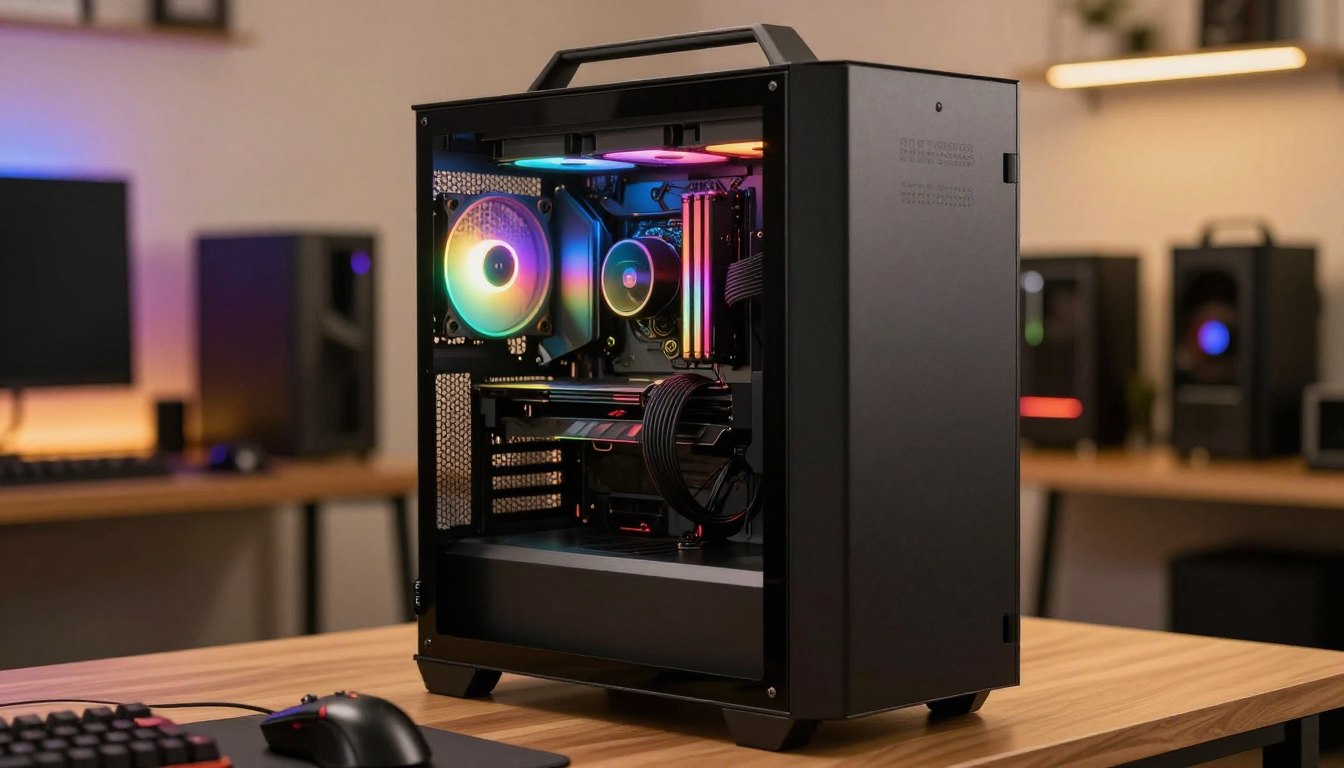
Check the case and power supply before upgrading
The Asus system has no mounting points or cages for 2.5-inch or 3.5-inch drives. Its XMP is disabled out of the box, so the memory setting may not use its intended profile automatically. Check these five areas before planning an upgrade.
- Power-supply capacity and connectors.
- Physical GPU clearance inside the case.
- Motherboard and case standardization.
- Available storage mounting points.
- RAM settings and compatibility.
Noise, cooling, and setup details that matter
A 240mm liquid cooler describes the cooling hardware, but the case layout still affects what else you can add. A strong power supply does not create drive mounts where the case has none. Think through storage needs as well as graphics upgrades.
The Alienware Area-51 takes a different approach with an 80-liter case. Its size offers a very different physical footprint, and replacing its motherboard requires a $35 adapter kit. Bigger does not automatically mean easier to modify.
Cooling and upgrade plans depend on the full system layout, not one headline component. Check the exact case dimensions and power connectors before planning a future GPU upgrade.
When Is a Premium Gaming PC Worth the Extra Spend?
A premium gaming PC is worth considering when demanding games, higher resolutions, and longer-term support matter more than the lowest initial price. The Corsair Vengeance a7500 targets high-end gaming performance and includes a 2-year standard warranty.
Its configuration has an AMD Ryzen 7 9800X3D, GeForce RTX 5070 Ti, 32GB DDR5-6400, and a 1TB PCIe 5.0 SSD. Shadow of the Tomb Raider and Red Dead Redemption 2 were playable at 4K on this system. It also showed strong performance at 1080p.
High-end performance for demanding games
Those game results do not mean every demanding title will run at 4K with the same settings or results. Different games place different demands on graphics hardware. A premium GPU gives you more room to target higher resolutions, but your experience still depends on the game and its settings.
If your library includes demanding titles and you value a higher graphics tier, the Corsair can make sense. Its standard warranty lasts two years. That added coverage is part of the value, alongside its hardware and the games you plan to play.
Spend more only for a capability you will use, such as the GPU tier, resolution target, or warranty coverage.
Warranty and price against your actual needs
The Alienware Aurora starts at $1,499.99 with an RTX 5060, Core Ultra 7 265F, 16GB DDR5, and a 1TB NVMe SSD. The Dell Tower Plus entry configuration is $1,449.99, with a Core Ultra 7 265, RTX 5060, 16GB DDR5, and a 1TB SSD.
These are lower entry configurations than the Corsair’s listed high-end hardware, but the model name alone does not define the right fit. Choose based on the games you play, your target resolution, and how much support matters to you. A 4K-capable system is wasted value if you only want light games at modest settings.
Conclusion
The best affordable choice is the one that meets your game and resolution needs without leaving essential setup costs out of the budget. The TechMagnet HP Premium with RX 550 is the strict-cap pick, while buyers seeking stronger 1080p performance should compare systems such as the CyberPowerPC Gamer Xtreme against sub-$1,000 configurations.
Before checkout, confirm the exact GPU, warranty, return terms, and included accessories for the configuration you selected. A model name can cover different hardware versions, so the listing details matter. Choose your target resolution, set a firm total budget, and verify the exact configuration before placing the order.
FAQ
What is the best budget gaming PC set?
The best budget gaming PC set pairs a tower suited to your games with a compatible 1080p monitor. Confirm whether the PC includes a keyboard and mouse, since standalone desktop towers commonly leave those items out. If the bundle lacks them, you can buy them separately and plan their cost alongside the display. A headset or speakers are optional, depending on how you play.
Is a $2000 PC good for gaming?
Yes, about $2,000 can buy a strong gaming system. Prioritize the GPU and your target resolution rather than assuming every configuration at that price performs alike. A system aimed at high-resolution gaming needs different graphics capability from one focused on lighter games at 1080p. Compare the actual components, then decide whether the extra features suit the titles you play.
How long will a $1000 gaming PC last?
A reasonable general expectation is several years of 1080p use from a $1,000 gaming PC. Demanding new games may eventually need lower graphics settings, and some players may choose a GPU upgrade. The PC’s starting graphics hardware and the games you play shape how long it feels comfortable. A lighter game library can keep an entry system useful for longer.
Is 32 GB RAM overkill gaming?
No, 32GB is not generally overkill for gaming. Many games work with 16GB, while 32GB gives you more room for demanding titles and background apps. It may help smoothness and 1% lows when memory is under pressure, but it usually does not create a large average-FPS increase by itself. Choose capacity based on your games and how you use the PC.
How much RAM for 4K gaming?
For 4K gaming, 32GB is a practical headroom target, though 16GB can run many games. The GPU usually matters more than extra system RAM at 4K because higher resolution puts more pressure on graphics hardware. Memory capacity still helps when a game and background apps compete for room. Check the whole configuration rather than treating RAM as the only performance factor.
Is 256 GB of RAM overkill?
Yes, 256GB is far beyond what typical gaming needs. For most players, 16GB or 32GB is a more practical range, depending on game demands and background use. A 256GB kit suits specialized workloads that need very large amounts of memory, rather than ordinary play. The money is usually better spent on a stronger GPU or more storage for a gaming-focused system.
Do I need 16GB or 32GB RAM for gaming?
Choose 16GB for many games on a tighter budget, or 32GB if you want more headroom for demanding games and background apps. The larger kit can improve smoothness when memory is under pressure, even if average FPS barely changes. Check the PC’s upgrade options and CPU compatibility before choosing a memory kit. Your games and multitasking habits should guide the decision.
If you want to dig further into what is fire science technology careers and a, read our What Is Fire Science Technology Careers and A guide.
If you want to dig further into how technology helps visually impaired tools, read our How Technology Helps Visually Impaired Tools guide.
If you want to dig further into how technology has transformed way we live, read our How Technology Has Transformed Way We Live guide.